
PowerPoint is great at a lot of things. Managing speaker notes, exporting slide text, working with audio files, and editing animation timings aren’t necessarily among them. That’s why I built Deck Bench, a PowerPoint utility that fixes things that are broken in PowerPoint and adds features that don’t exist. From importing and exporting speaker notes to splitting presentations into separate files, Deck Bench takes care of the tedious stuff so you can get back to building your courses and presentations.
It’s become my secret weapon. Here’s a quick walkthrough of what it can do.
Split Deck
(It’s the image at the top of the post)
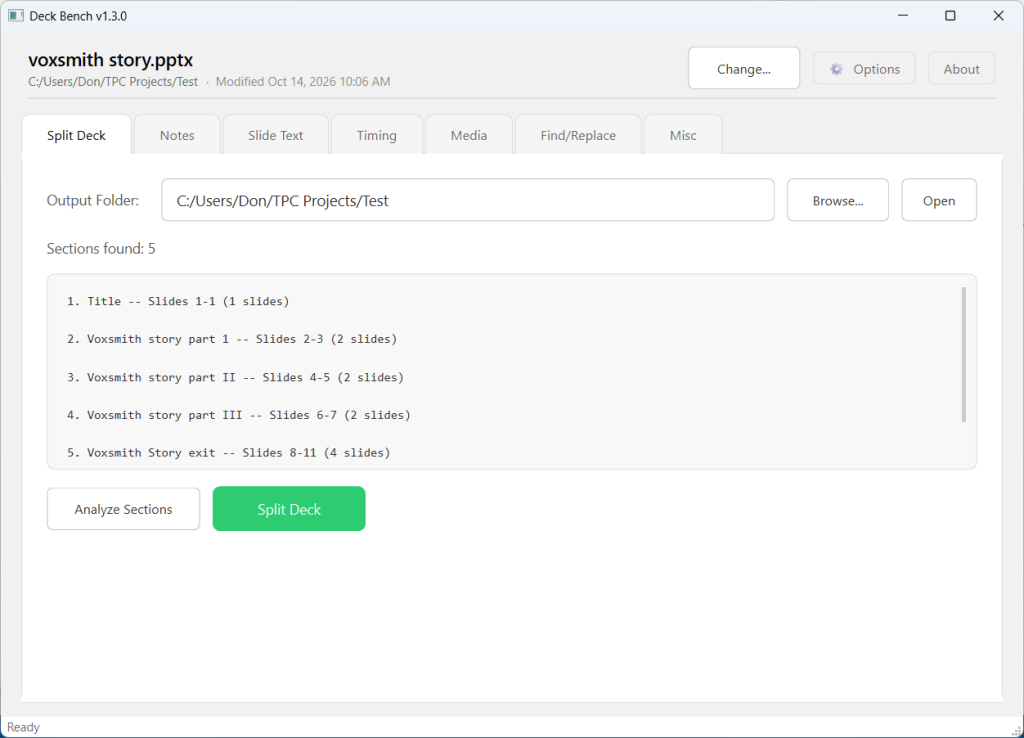
Have a PowerPoint presentation with multiple sections that need to become individual files? You could manually save a copy for each section and delete the slides you don’t need. Or you could let Deck Bench do it.
With your presentation selected at the top, open the Split Deck tab. Deck Bench finds the sections in your presentation and creates a separate PowerPoint (.pptx) file for each one. This is especially handy when you’re building a course with multiple chapters and need to deliver each chapter as its own presentation.
Notes
PowerPoint’s speaker notes are great until you need to do something with them outside of PowerPoint.
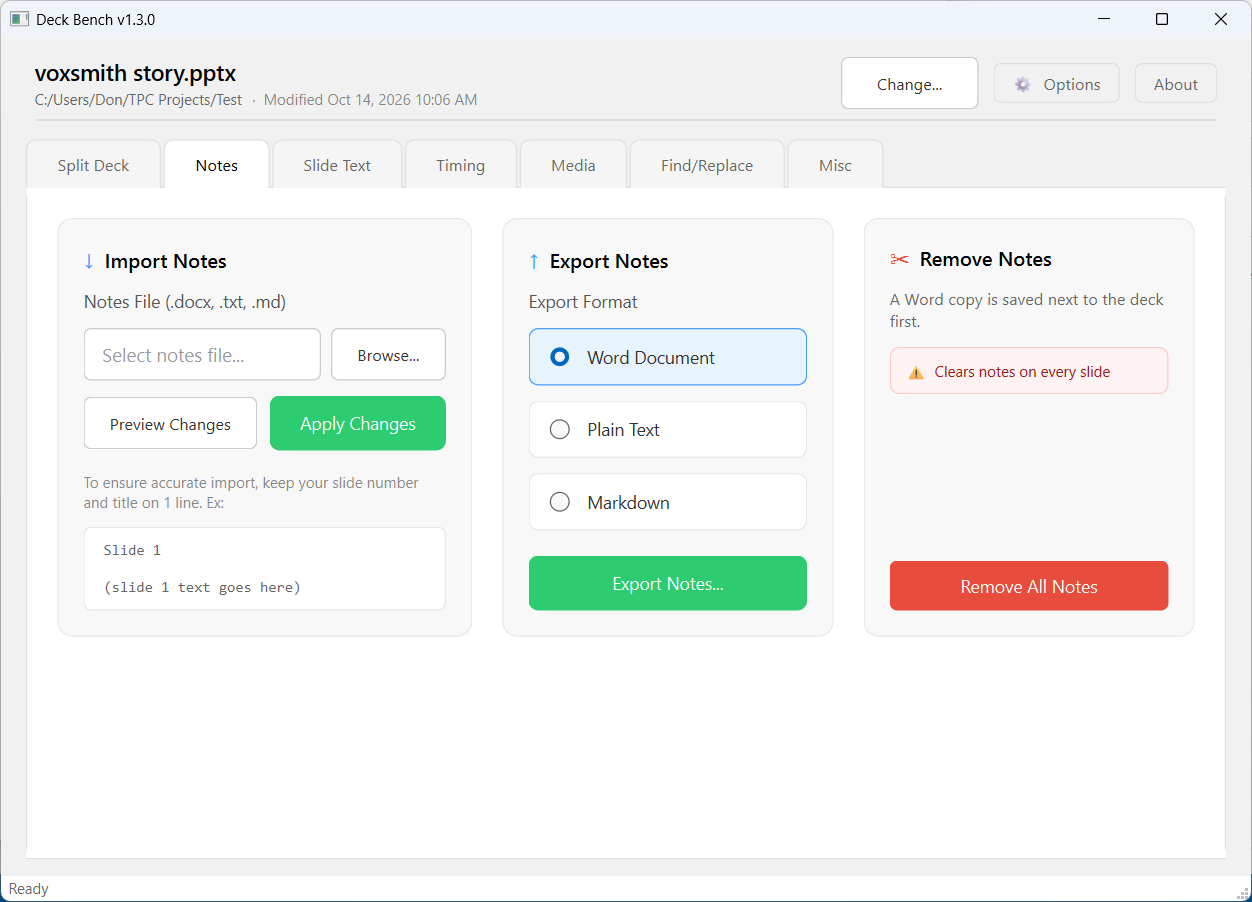
The Notes tab lets you import speaker notes from Word, plain text, or Markdown files. You can also export all of your speaker notes to any of those formats.
Need to remove the notes before sharing a presentation? You can strip them all out, too.
Whether you’re preparing narration scripts, updating existing notes, or moving content between applications, this tab makes managing PowerPoint speaker notes a whole lot easier.
Slide Text
Sometimes you just need the text from your PowerPoint slides. Not the formatting, not the graphics, just the words.
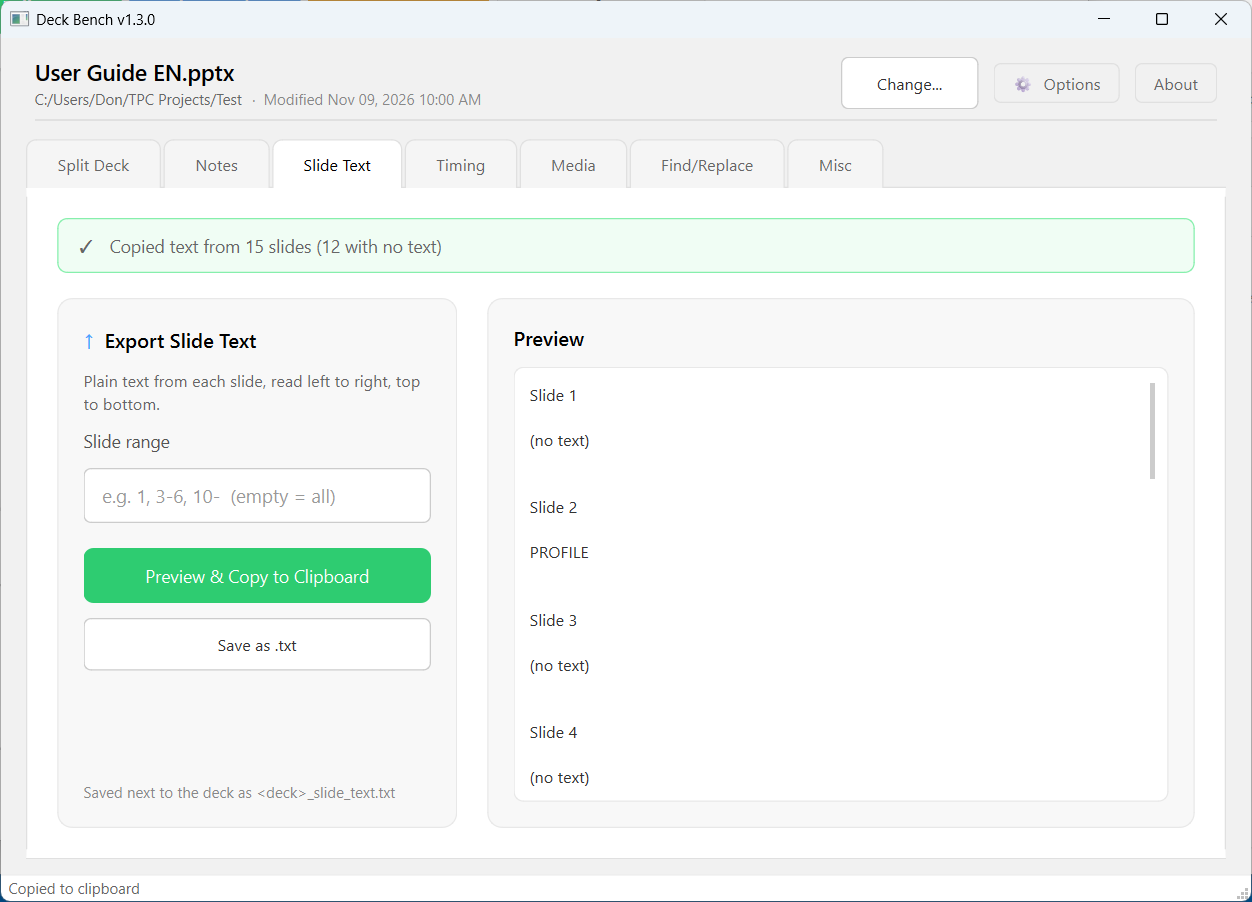
The Slide Text tab lets you preview your slide content as plain text or export it to a file alongside your presentation.
If you’ve ever done the copy-and-paste dance between PowerPoint and Storyline, you know exactly why this is useful. Instead of opening slides one at a time and copying text, you can get the content out in one operation.
Timing
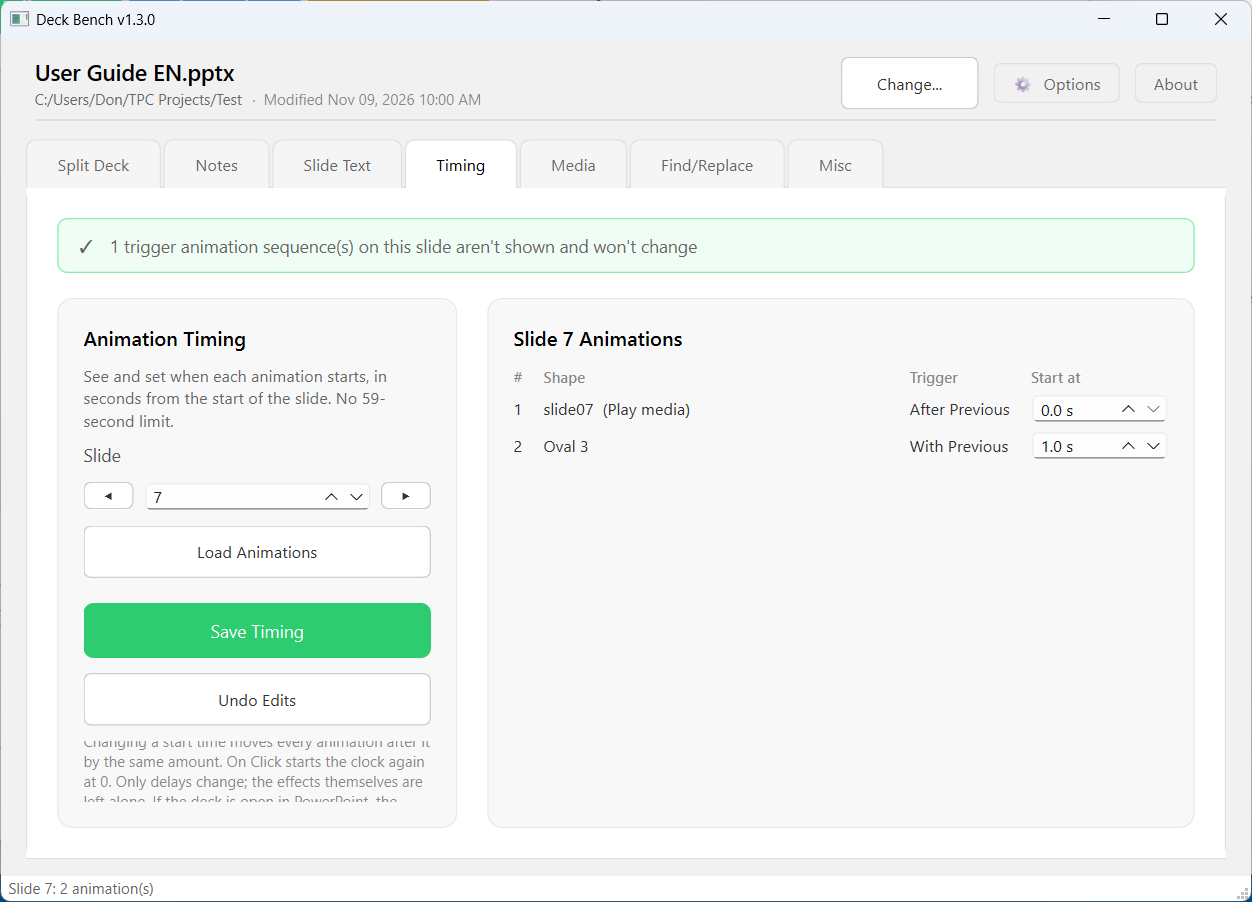
Here’s one of those PowerPoint problems that shouldn’t exist. When you have a long slide and need to set animation timings beyond 59 seconds, PowerPoint’s interface can make things unnecessarily difficult.
The Timing tab lets you select a slide, load its animations, enter the timing values you need, and save those changes back to the presentation.
No fighting with the animation pane. Just set the timings and move on.
Media
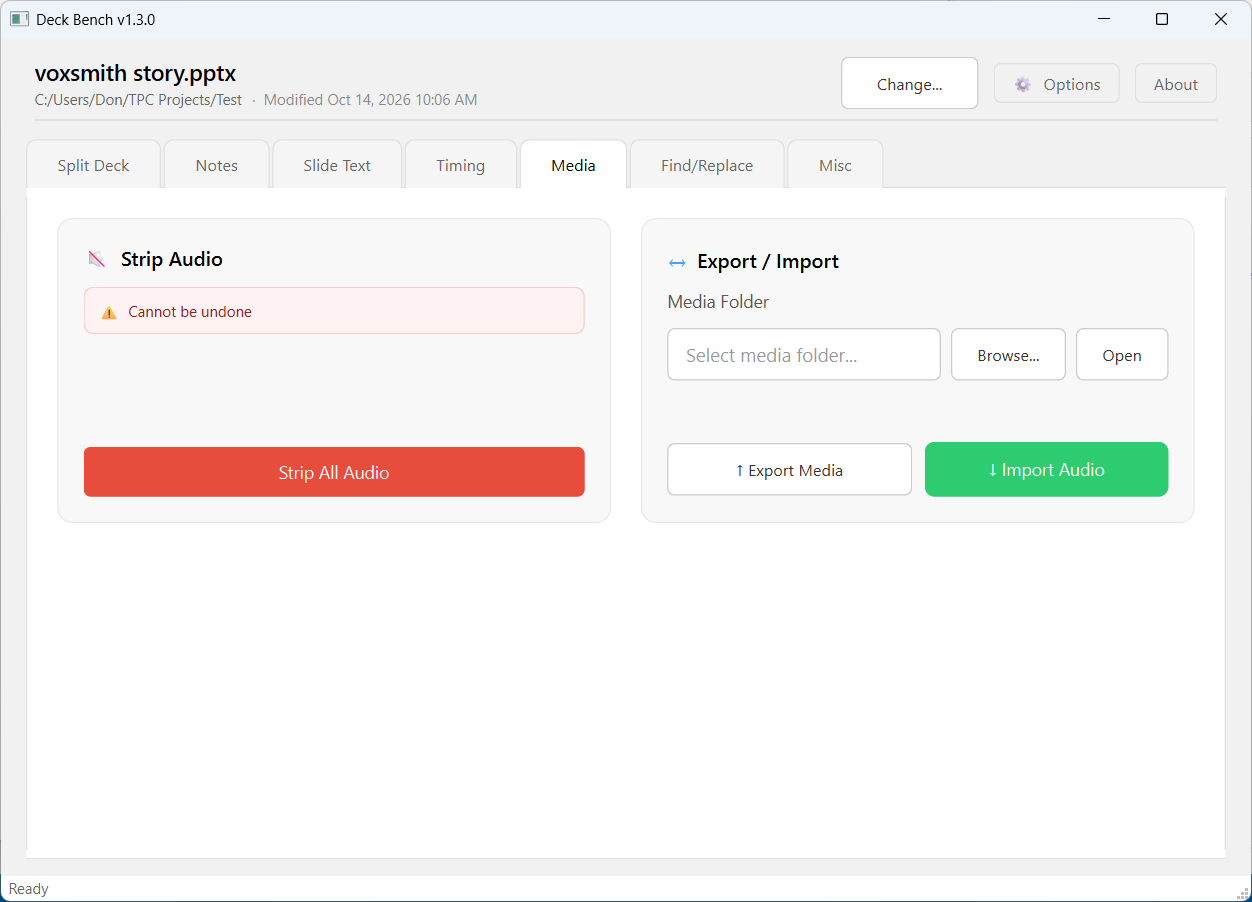
Working with narrated PowerPoint presentations means dealing with a lot of audio files. Sometimes you need to remove them, sometimes you need to get them out, and sometimes you need to put them back.
The Media tab handles all three.
You can remove all audio from a presentation, export its audio files, or import audio back into the deck. This is particularly useful when you’re updating narration, preparing a presentation for another production step, or cleaning up a deck before starting over.
Find/Replace
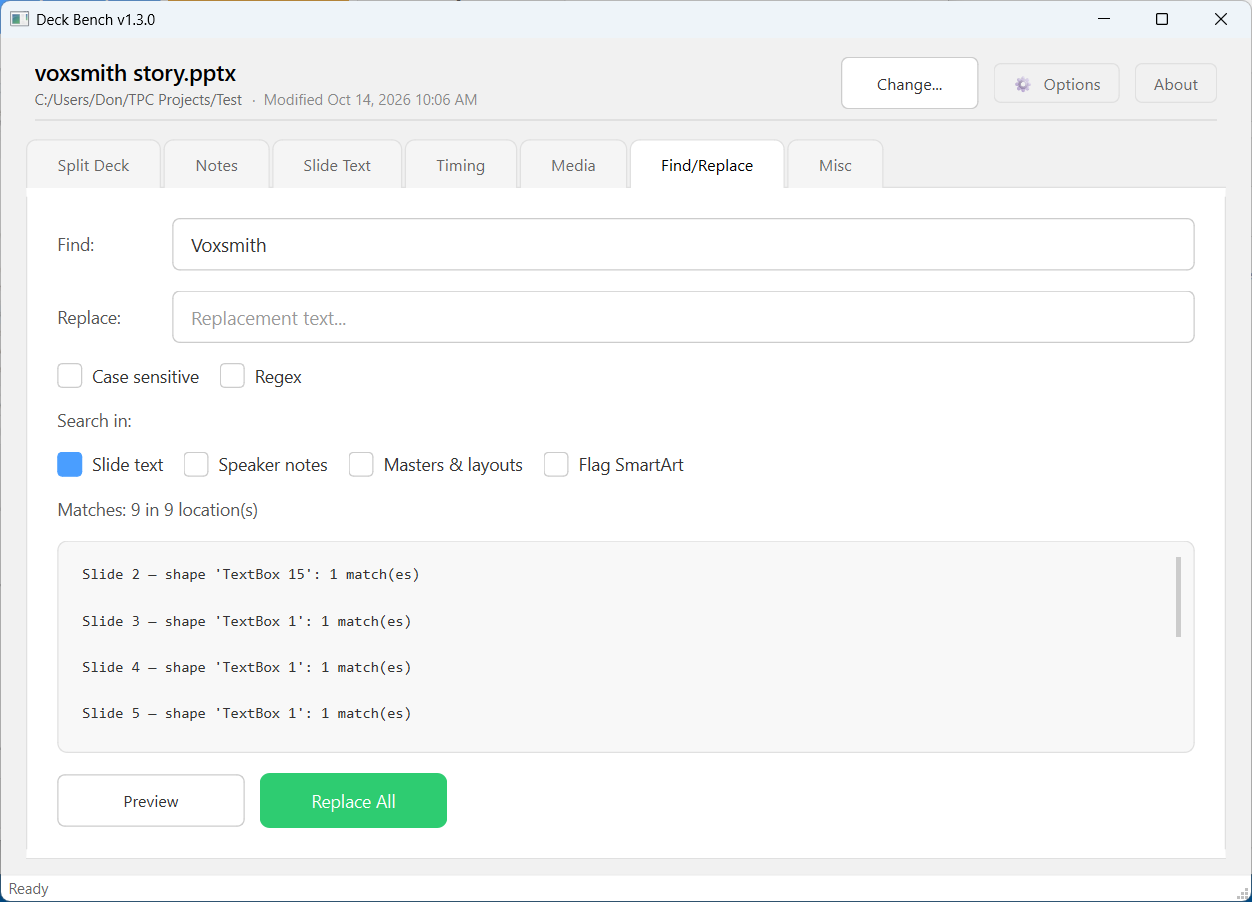
PowerPoint has Find and Replace, but what if you only want to change text in your speaker notes? Or only the text on your slides? That’s where Deck Bench comes in.
The Find/Replace tab lets you target the content you actually want to change without affecting everything else.
Need to update terminology throughout a narration script without touching the slide content? No problem. Need to update slide text while leaving the notes alone? You can do that, too. It’s a small feature that can save a surprising amount of time.
Misc
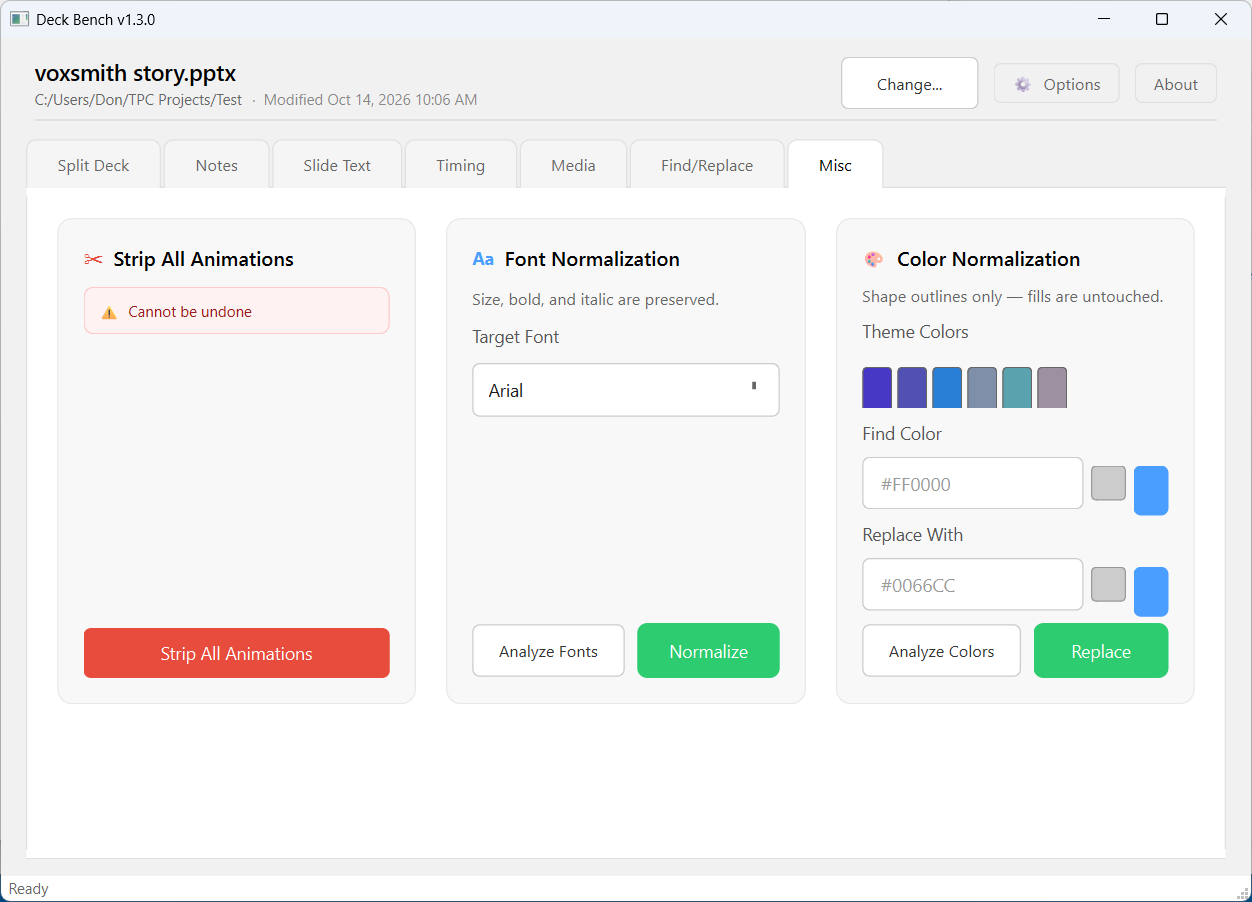
Every utility needs a place for the tools that don’t quite fit anywhere else.
The Misc tab includes options to remove all animations from a PowerPoint presentation and normalize fonts and colors.
If you’re cleaning up an existing presentation, preparing slides for reuse, or trying to get inconsistent formatting under control, this is a good place to start.
That’s Deck Bench
I built Deck Bench because I was tired of working around PowerPoint’s limitations. These are tools I needed for my own production workflow, and I use them regularly. If you’re building training courses, working with narrated presentations, or spending too much time doing repetitive PowerPoint tasks, you might find it useful, too.