
During your design phase, you’re building animations and notice a typo that was previously missed. Maybe the voice glitched on an abbreviation, or the SME decided slide 7 needed a rewrite.
You don’t have to reprocess the entire deck!
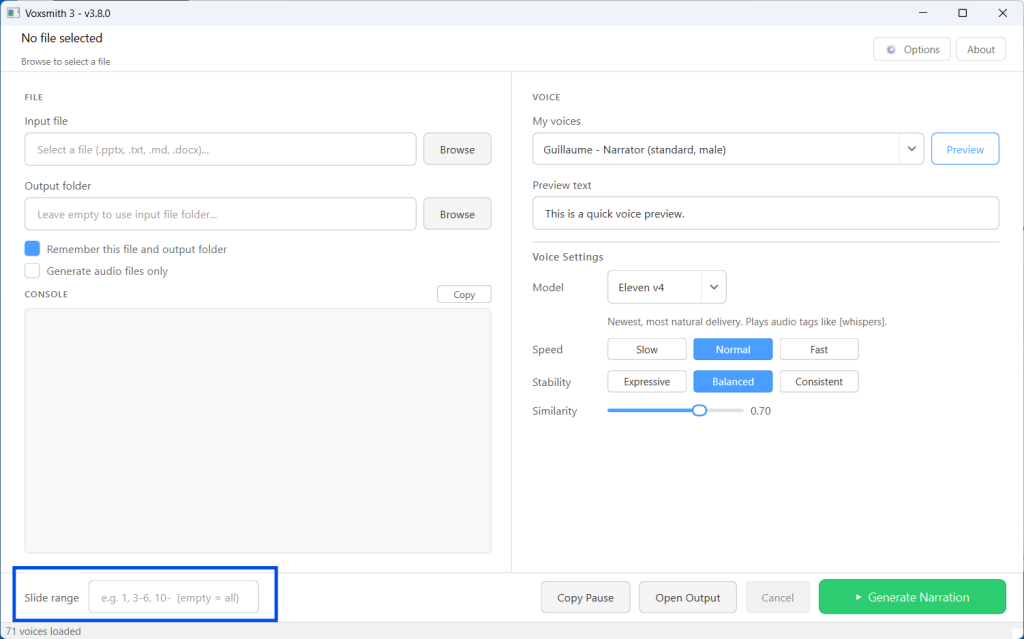
Voxsmith lets you process one slide at a time. Notice the box in the bottom left? That’s the slide range box. Type a single slide number and press Enter or click Generate Narration.
Voxsmith will back up your animations*, read the script, regenerate the audio, reattach it to your slide, and restore your animations. Just like a full run, but for a single slide.
The slide range box is also helpful for processing multiple slides. Want narration on slides 1, 5, and 18? Enter 1, 5, 18 and click Generate. Need slides 3 through 11? Enter 3-11 instead.
Fix what needs fixing, leave everything else alone, and get back to building your course.
*Voxsmith cannot back up and restore text box animations. When reprocessing slides containing these animations, the generated audio must be attached manually.